This is a fan I made:
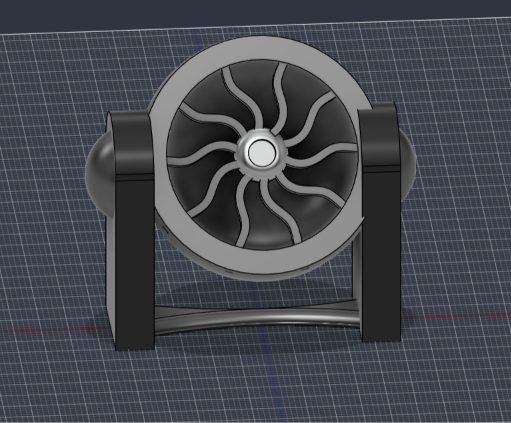
I’ll be honest, it’s not a super well-made fan. The sides seem to be melded together with the main shell, and the base is way too thin. But it’s a fan.
I would say the actual process of making the object was a fun challenge. Spacing the fan blades around the circular middle knob was satisfying, even. The hard part was figuring out the Autodesk Software. There were several factors that made learning it properly a headache:
The layout of Fusion is, in my opinion, very unfortunate for a beginner. The most common actions you would want to perform (such as scaling) are hidden under easily missed submenus.
I understand the names for the operations make sense for experienced engineers. However, when I was figuring out how to bevel the edges of a shape, I am not going to expect an operation called “Fillet” to be the desired action. To me, “Fillet” is a fleshy, boneless piece of meat. I would argue even names like “Circular Pattern” could be made even a word more descriptive, into actions like “Circular Pattern Duplication”.
The common solution people post for navigating Autodesk quickly is to learn all of the shortcuts associated with each operation. However, this does not remove the headache that a new user must take on while learning. Memorizing the hundreds of possible keyboard actions takes more than a few sessions to master. For Fusions specifically, the keyboard shortcuts could also be quite unintuitive. As an example, in many pieces of software, shortcuts involving “X” commonly perform cut, delete, or remove operations (e.g., Ctrl+X is usually Cut to Paste, in Blender, “X” deletes objects). Yet in Fusion, “X”it is the shortcut to toggle on construction geometry.
There are many times where the app will tell you “NO”, and prevent a user from performing an action. The method it uses to tell you “NO” is disruptive to work productivity and focus. Consider if you are attempting to revolve a full circle around an axis to make a sphere. The error message will tell you what went wrong (the user tried to overlap with the revolved around axis) but not why (for example, quickly pointing to the part of the shape that cased the issue). Solving problems often requires leaving the app to scour forums pages from a decade ago.
I realize all four issues above could be labeled as skill issues. However, for such a matrue piece of software, I would hope that they would be set to a higher standard, as they have more resources available to them for making their products better.
For more about the fan itself, I made sure to separate the object into chunks, as you can see with the various components in the image below:
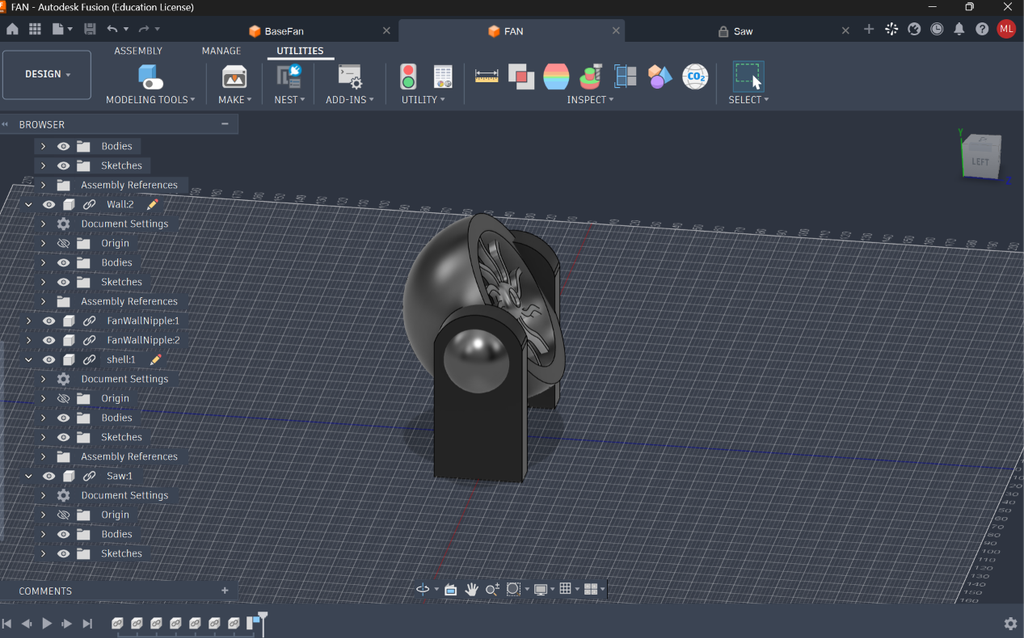
Due to my lack of experience with Fusion, putting it together piece-by-piece meant that some bits that looked fine on their own looked a bit ugly when put together. But I am confident that the general approach was correct; putting this fan together as one huge sketch would have been a mistake.
I do definitely see the value in 3D modeling in the digital humanities. Consider a museum reconstructing a place that existed thousands of years ago, or interactively viewing an artifact or artpiece.
As a tip for new users to Autodesk Fusion, if you ever want to edit something in Assembly Mode, but the software prevents you from doing so, try navigating to the object in the component tree and enabling “Edit in Place.”
Hi Mason,
I think your fan turned out really well! I also had issues with the error messages and ended up giving up on certain functions because I couldn’t figure out what was wrong with them. If I might ask, how did you make the fan blades? I couldn’t figure out how to make anything curved like that outside of the basic arc tool.
I had the same problem with assembling my model. Some pieces came out very odd at the end!
Hello Lily,
There is a tool hidden in the sketch menus called “Circular Pattern”. You select a body, and a circle to revolve around, and it will evenly space the body around the circle.
Here is the documentation:
https://help.autodesk.com/view/fusion360/ENU/?guid=GUID-195A1C75-1C94-47AE-A10F-DBCC17C2A212